
SimpleDim contains powerful functionality as a powerpoint area calculator. It can find the area of most commonly used shapes with the click of a button. Even better, it does this in the units and the scale you specify. This is all part of its capabilities and turning your Powerpoint into a CAD-lite powerhouse for layouts and drawings.
Finding areas of shapes in powerpoint is a critical feature whenever a layout or drawing is created. Areas might have to be identified to find acreage, square feet, or other measurements that are important to how space is used.
For example, we were reviewing a parcel of land for a project. Someone asked how many acres a different parcel configuration could be. With SimpleDim, we were able to drop a screen-snip of the PDF into powerpoint, draw a freeform shape over the desired area, and find the area in the units needed. Easy!
Here’s how it happens.
Set The Scale
As usual with SimpleDim, first set the scale for the slide. This isn’t mandatory, and the tool will let you go ahead with the base slide scale. But a scaled drawing is why you’re using SimpleDim, right?
So go ahead and set your scale with the “Set Scale” or “Set Scale From Line” tools. In our examples below, the slide is set at a 1″:25′ scale.
Select A Shape
SimpleDim will calculate areas of the most commonly used Powerpoint shapes. These include rectangle, ovals/circles, triangles, and–very important!–freeform shapes.

Freeform shapes are very important because they are super-flexible. You can point-and-click each vertex on a freeform shape. This means that you can do custom shapes on overlays and pictures, and still find the areas even if the shape is not a basic rectangle or circle.
Click “Find Area” Button And Watch The Magic
Once you’ve clicked on your desired shape, then click the “Find Area” button in the SimpleDim ribbon:
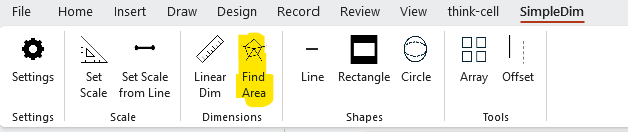
Then SimpleDim will figure out what shape you have and find the area.
Standard geometric formulas are used for the Rectangle, Oval, and Triangle shapes. The oval calculations include Circles.
SimpleDim will even find areas of rotated shapes.
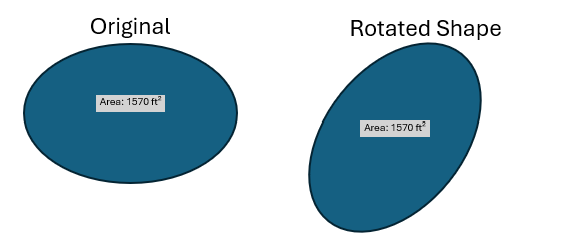
And it will use a special formula and algorithm to find the area of freeform shapes, which are more difficult to calculate.
Power of Finding Areas With A Click
Just as SimpleDim makes finding scaled distances in Powerpoint super-easy, now there’s no more drudge work of calculating scaled shape areas in Powerpoint.
No more finding the shape width and length, then applying the right geometric formula, then multiplying through again by your scale.
No more slicing complicated shapes up into little rectangles or triangles and making a table in Excel to find the area.
Using SimpleDim, you can set your scale, pick a shape, and find the shape area with a few easy clicks in the powerpoint area calculator.
Go ahead and sign up for your free 30-day trial today! Make your life easier and make great layouts with SimpleDim.